Interact with the Linux Shell
It is not the hunger to know but the passion to write that drives me to learn.
Linux is an operating system whose kernel allows for the interaction and management of software and hardware resources over a computer system. What makes Linux what it is is the kernel. Linux is the second most popular operating system in the world after Windows OS and it is the operating system that powers most technologies from mobile phones, supercomputers, cars, etc. The operating system is open source (that means, it is free on the internet and anyone can contribute to make it better or make a copy of it to suit their unique needs). Again, the OS has been around since 1991 after it was developed by Linus Torvalds.
Linux is classified under the Unix family or Unix-like systems owing to its multitasking and multi-user features. The kernel of the OS is made up of components such as daemons to manage background functionalities, bootloaders to handle system boots, and kernel to manage CPU, monitor, and peripherals.
One can easily think the OS is "non-intuitive" or "command line-centric" and can only be used by tech gurus because Linux is often associated with its robust command-line component but that is not true. It has a GUI that is lightweight and very easy to navigate.
There are other interesting things about Linux that you should know about. The following subsections will point at them clearly to you.
Linux Distributions
Linux operating system has different flavors, also known as distributions in its collection. As an open-source project, its distros are developed to meet various user's needs. Ubuntu and Kali Linux fall under the Debian-based Linux flavor. Fedora and CentOS flavors and both classified under Red Hat Enterprise Linux(RHEL). Other flavors like the Linux Mint, Arch Linux, OpenSUSE, Majaro, Gentoo, etc are part of what adds to the operating system's popular adoption.
The Command Line
A bulk of the work you do in Linux OS is mostly done from or on the command line. If you refer to the command line as terminal, you are very right.

The command line is a text-based user interface of the operating system for handling files and manipulating files and software.
Shell
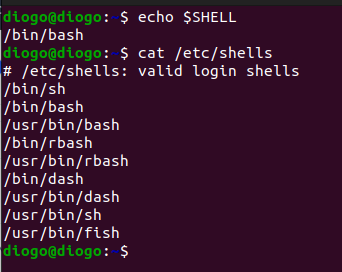
The shell is like the kernel of the command line. Bash(Bourne again shell) is the popular default shell in some distributions. The shell is built with the function of providing users with a working environment. The shell works with the commands interpreted and uses them to interact with the operating system. Providing standard input and output mechanisms. Find out the shell is in your Linux distro.
$ echo $SHELL
There are other shells aside from the bash shell. To view them $ cat /etc/shells

Users in Linux
Users are different types of accounts that are found by default of can be created in an operating system. In Linux, there are 3 different classes of users. The first one is the one that is called the root user, the next category is the regular user(s) and the service. Note that under regular users, there are single users and group users.
a. Root
Root is the administrative or the highest rank of a user in the Linux operation system. It generally goes with the name "root" but can also be called superuser. When a Linux operating system is installed, the root account is created by default. This user has the greatest privilege to administer, manage, set up, install, and run high-level commands. It has access to all the Linux directories, operations, and services, and unlike regular users, the root user cannot be removed or deleted from the OS. The root account in all Linux distros has the number 0(zero) as the UID(User ID). If you want to use the root account in your command line operations, use the command $ sudo su to become root.

b. Regular Users (user)
Regular users are the individual accounts that are created within the operating system. It could be a personal or group account. Upon installation, one mandatory account is added and tagged with a username and password. Once a regular user is created, a user group is created automatically. This group takes the same name and ID of that particular user. Other users and groups can then be created by that initial user. Regular users have access to certain files and directories and can perform certain low-level tasks on their own.
Regular users have limited privileges, of course, that have a full charge on the resources they own. They can read, write, and execute certain files, and assign additional ownership to their resources and when it comes to certain critical files, services, tasks, and directories, they have limited privileges. To find out all the user/group accounts in your system. The $ cat /etc/passwd comes in helpful.
The golden rule in Linux is NEVER to run the OS with a root account or go into the terminal as root.
This is where regular users can now exercise those root functions by using administrative privileges through the "sudo" command and the user's password. The sudo command happens to mean "superuser do" and with this, the kernel can process critical functions that are carried out by regular users as if they are coming from the super user.
The UID(User ID) and the GID(Group ID) of regular users start from 1000. Typically, the first user account created upon the installation of the operating system takes a UID and GID of 1000, the second user account takes 1001, and so on.

c. Service
Service accounts are system or application accounts that only take effect from the background when an application or a particular system job is running. When you install a package in Linux, service accounts are created to enable the package to perform its operations smoothly.
Service accounts are not used for normal tasks like the creation, reading, or execution of regular files. The ID of service accounts takes lower numerical denominations usually between 1 and 999.

Files and Directories
Linux OS uses files and directories as a stockpile for its programs and data. Files are the smallest unit of holdings of Linux programs and these files are grouped and organized according to their functions into directories. Upon installation, the critical directories that are necessary to house the top-of-the-list files or programs in Linux are created by default. From there, users can create their own files and directories for their operations.
List of Linux Root Directories

/ denotes the root directory ---> This is the home directory for the root user and houses all other directories that are sensitive to the root administrator.
/bin denotes the binary directory ---> This is a directory that contains all the executable commands and programs needed for the system's daily usage.
/cdrom denotes CD ROM directory ---> This directory serves as a mounted directory for CD ROM drives.
/etc denotes Etcetera directory ---> This directory and its sub-directories house all the files that are wired for system-wide configurations.
/lib denotes Library directory ---> This is the directory that houses all the essential libraries and modules that are used by the operating system's binaries. lib64, lib32 and libx32 are used by 64-bit system architectures to execute 32-bit and 64-bit libraries independently.
/lost+found denotes Lost and Found ---> This is the directory where you can find all the recovered or orphaned files.
/mnt denotes Mount ---> This is a directory that provides an entry point for external devices.
/proc denotes Process ---> This is a directory that houses the information regarding the processes that run on the system and their configurations.
/run denotes Run ---> This directory holds the data of the systems and processes when they are running.
/var denotes Variable ---> This is a directory that contains the system's data that are likely to change during usual system operations.
/boot denotes Boot ---> This directory contains all files that are required for booting the kernel.
/dev denotes Devices ---> This directory contains the device files that help devices communicate with each other.
/home denotes Home ---> This is the home directory for regular users. Under this directory, there are default directories like Pictures, Music, Downloads, Desktop, Videos, Documents, and any other that is created by the user.
/media denotes Media ---> This directory provides an entry point for removable media like USB and CD drives.
/opt denotes Optional ---> This directory is like a reservoir or storage for optional packages or third-party software that are not supposed to be included as part of the operating system's core functionality.
/root denotes Root ---> This is the home directory for the super user (root)
/sbin denotes System Binary ---> This directory contains all the programs and commands that are used for Linux administration.
/srv denotes Services ---> This directory stores all the data or files for all the services that are run by the operating system.
/sys denotes System ---> This directory contains a virtual filesystem that houses all the data about the operating system's kernel and general information about the system.
/usr denotes User ---> This directory contains all the user programs that are related to the system users.
The above-listed directories are the core directories of the Linux operating system, making the OS tenacious and as strong as everything it has been designed to do.
BASIC LINUX COMMANDS
whoami
$ whoami is a command that is used to find out the user that you are currently logged in as. If you are currently logged in as a regular user, the $(dollar symbol) will proceed with the command and the name of the user will show up as the result, if you are logged in as root, the #(hash symbol) will always precede the command and the name "root" will show up in the result.

To see more that you can do with $ whoami or other flags you can use to get more robust commands, $ man whoami or $ whoami --help.
pwd(print working directory)
$ pwd is a command that is used to show or print the actual directory that you are currently working in. There are many directories in the OS where users can navigate to perform certain functions.

To see more that you can do with $ pwd or other flags you can use to get more robust commands, $ man pwd or $ pwd --help.
cd (change directory)
Because the Linux filesystem is arranged in file and directories, $ cd is used to navigate into and out of directories. If you are in the regular user's home directory and want to enter into the Desktop directory. $ cd Desktop

Perhaps you are in the root directory and want to enter into the /usr directory and from the usr directory, you enter into a directory called bin which exists within the /usr directory. You can either use a straight command $ cd /usr/bin to go straight to the bin directory or use the commands $ cd /usr and $ cd bin to navigate the directory one after another.
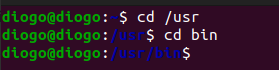
To move out of a directory back. For example, if you want to move from bin directory up to the /usr directory which is like a parent directory to bin directory, use the command $ cd ..

If you want to move from your current directory back to the home directory $ cd command takes you there without any halt in the way.

To see more that you can do with $ cd or other flags you can use to get more robust commands $ cd --help.
ls (list directory)
$ ls command is used to view the content of a directory.
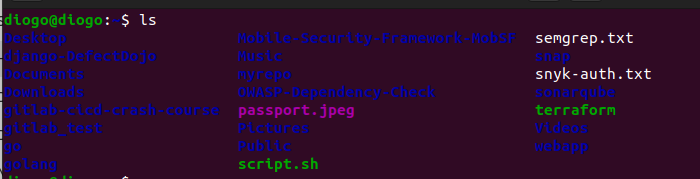
With this, you can properly navigate through other child directories, files, pictures, etc. The $ ls command can be used with other flags to show more content like hidden files, file permissions, etc.
Note: directories are named in blue colors, files are named in white, executables lie script files are named in green, pictures are named in purple and unzipped files are named in red.
$ ls -a ---> list all content both hidden and unhidden. The files and directories with a dot at the beginning denote that the file is hidden and cannot be found with the conventional $ ls

$ ls -l ---> show all the content in a long list format together with the permissions the owners of the files have, the hard link, the owner of the file, the group, size of the directory in bytes, the date and time when the latest changes made in the file or directory.
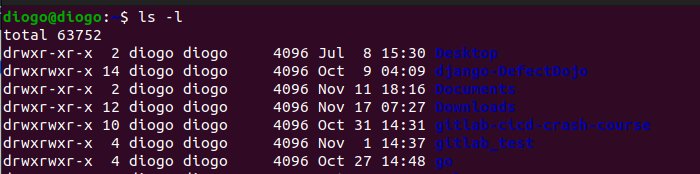
$ ls - la ---> lists both the hidden and the visible content of the directory in a long list format.

To see more that you can do with $ ls or other flags you can use to get more robust commands, $ man ls or $ ls --help.
mkdir (make directory)
$ mkdir is a command that is used to create new directories. For instance, if I want to create a directory with the name "myfolder" in the home directory, the command will be $ mkdir myfolder
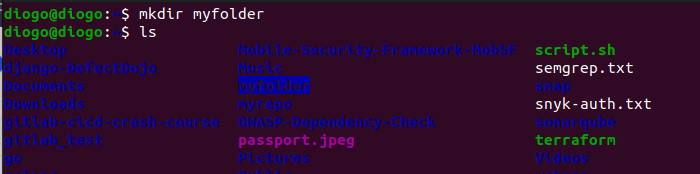
If I want to create two or three directories with the names folder1, folder2, and folder3 all at once, the command $ mkdir folder1 folder2 folder3 does the work.

With the GUI, you have to enter into a directory to be able to create a new directory. But with the command line, you can create a parent directory with different child directories using a single command. Let’s say you want to create a directory called Lovers-list and inside this directory, you want to create a directory called List1, and inside the new directory list1, you want to create another directory called Names. With $ mkdir, you can create layers of directories.
$ mkdir -p Lovers-list/List1/Names
Where mkdir is the command, -p is a flag that specifies that Lovers-list is the parent directory and inside it, List1 and Names directories will be created.
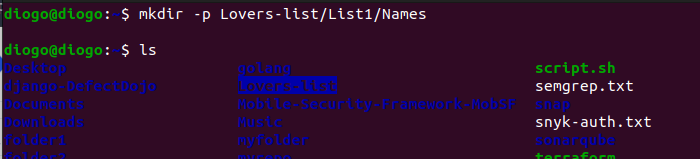
Use the $ tree Lovers-list command to view the order in which the directories were created.
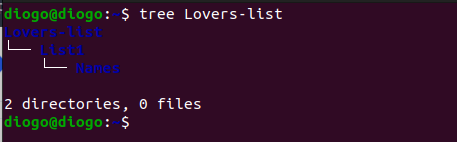
Note, that the $ tree command does not come pre-installed with some Linux distros, you may be prompted to install them using your package manager.
To see more that you can do with $ mkdir or other flags you can use to get more robust commands, $ man mkdir or $ mkdir --help.
rmdir (remove directory)
$ rmdir command is the sharp opposite of $ mkdir. It is used to remove empty directories when you no longer need them. For instance, to remove the directory with the name myfolder, the command $ rmdir myfolder will do the work.
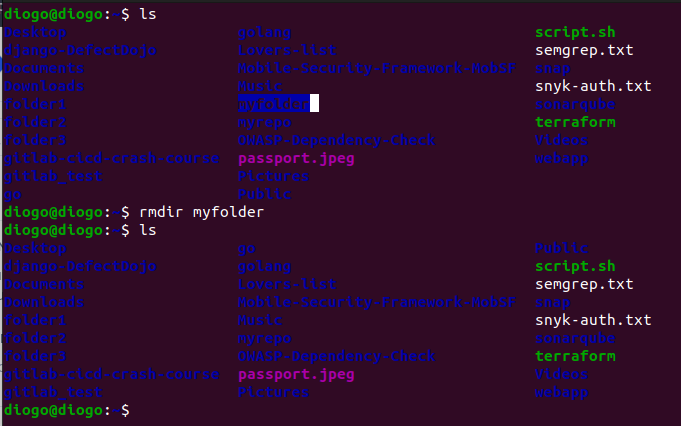
To remove more than one empty directory at a go, $ rmdir and the name of the directories will do the work. Eg, to remove the folders we created above folder1, folder2, and folder3 using a single command. $ rmdir folder1 folder2 folder3

To remove a directory that has some content inside it like files and directories. $ rm will be used with the -rf flag to force the deletion and remove the content within the directory recursively. For example, to remove the Lovers-list directory created above, $ rm -rf Lovers-list
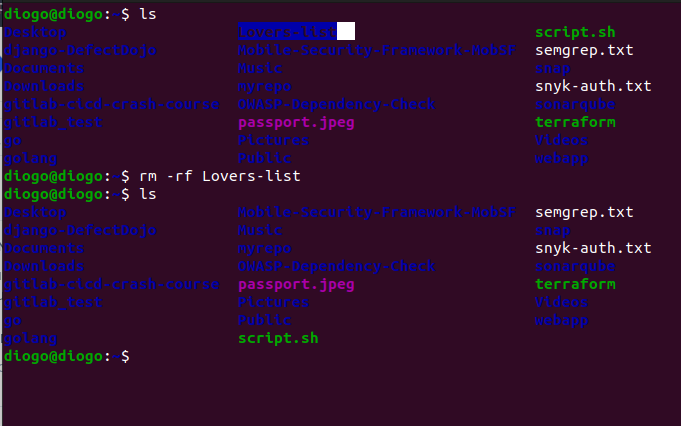
To see more that you can do with $ rmdir or other flags you can use to get more robust commands, $ man rmdir or $ rmdir --help.
Files
A file is a written material or a container of texts, symbols, images, scripts, codes, etc. When creating a file in Linux, it is a best practice to always use an extension to denote the file type, eg, .txt for a text file, .sh for a script file, .py for a Python file, etc. With this, anyone on the system can know the content of the file without opening it.
touch
$ touch command is used to create files. For instance, if you want to create a file simple text file with the name file1.txt, $ touch file1.txt

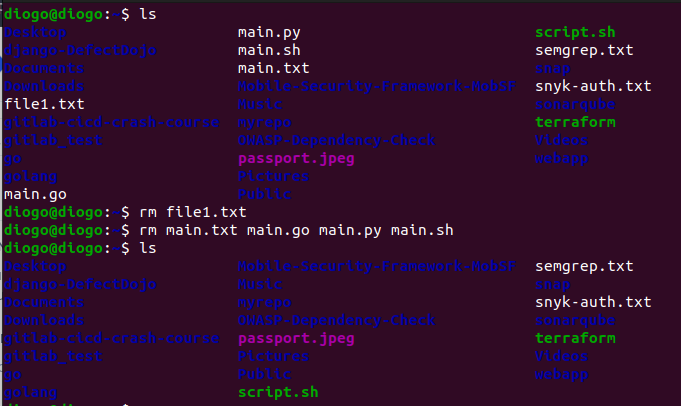
With the touch command, you can create multiple files with different extensions at one go. Eg, if you want to create files named main.txt, main.go, main.py, and main.sh. $ touch main.txt main.go main.py main.sh will do the trick.

To delete or remove an empty file from a directory, you have to enter the directory where the file is and use the $ rm command + the name of the file to remove the file. Eg, If I want to remove the files I just created, $ rm file1.txt and $ rm main.txt main.go main.py main.sh will do the work.
nano, gedit, vi, or vim (text editors)
Text editors are commands that are used to provide a waiting environment to a file. With any of these commands, you can add, modify, or delete the content of a file. In extreme cases, you can use these commands to read the content of a file within the text editor itself but not on the command line.
(Free bonus: With content editors, you may not need to create a file with the $ touch command before. once you open use any of the text editor commands to open a file, if the file has not been previously created, it will get automatically created and opened in the text editor.)
Note: Nano commands come pre-installed in every distro but you may need to install vi(vim) or gedit before using them.
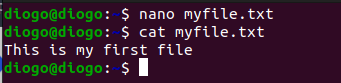
Example: Let us say you want to add the content "This is my first file" to a file named myfile.txt. $ nano myfile.txt will automatically open the editor once that command hits the command line.

Use ctrl+x to save the changes made, use ctrl + y to say "yes" and affirm that you want to save the changes, and hit the "Enter" key on your keyboard to return to the command line.
cat(concatenate)
$ cat command is used to view the content of a file from the command line. The downside to this command is that you can only use it to view files with little content - a page. Large content can be viewed with text editors.
Eg: to view the content in myfile.txt edited above $ cat myfile.txt
cp
$ cp is a command used to copy files, groups of files, and directories from one location to another location. Eg: let's say you want to copy myfile.txt from the home directory to a directory called Videos. To do this, you have to make sure you are in the home directory, then use the $ cp command to copy the file to the Videos directory using the command $ cp myfile.txt Videos.
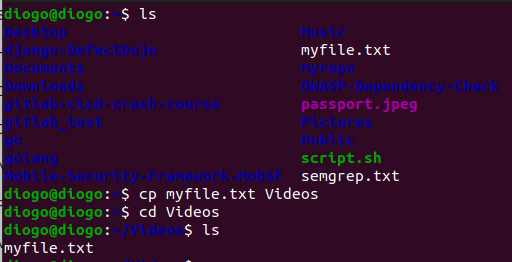
You can copy more than one file or directory at the same time so long as they are in the same location and going to the same location.
$ cp file1.py file2.go myfile.txt Video

To copy a directory, the command is the same as it is with the file but in a case where the directory has some files or child directories within it, the -r flag to copy it recursively.
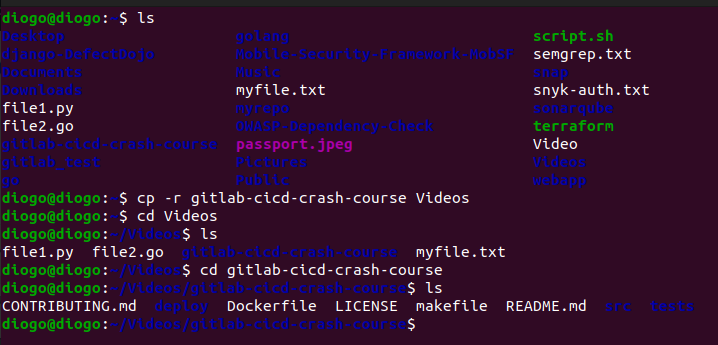
For example, let's say you want to copy a directory named gitlab-cicd-crash-course from the home directory to Videos, $ cp -r gitlab-cicd-crash-course Videos
rm (remove file)
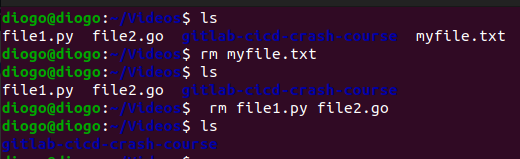
$ rm is a command that is used to remove files from a directory. For example, let's say you want to remove myfile.txt and also remove file1.py and file2.go using a single command. $ rm myfile.txt and $ rm file1.py file2.go will do the work.
mv (move)
The $ mv command is used to rename files and directories. For example. to rename the directory gitlab-cicd-crash-course to Simple, use the $ mv command and provide the name of the directory and the new name. $ mv gitlab-cicd-crash-course Simple

Note, when naming files and directories aside from the extension which denotes the type of file, there is no particular name type for files just give it any name you wish but the best practice is to keep the name understandable to denote the file content in the file or directory.
Again, the name convention for Linux files and folders in the command line does not support spacing. You can use symbols to separate words or write them together in any caps or your course.
It is best practice to use simple names as the Linux command line is case-sensitive. This means that commands, file names, and other identifiers must be entered with the correct capitalization for the system to recognize them correctly.
apropos & whatis
If you are stuck between knowing the name of a Linux command and what the command does, the apropos and whatis commands will pull you out of the stuck. These commands give some little tips for Linux commands. Eg: Let's say you want to find out what the command "chown" does, or you want to find out what the command "apropos" itself does, you can use either $ apropos or $ whatis commands this way: $ apropos chown or $ whatis apropos
history
$ history command is used to view all the commands you have used in your terminal in the order in which you have used them. This is helpful to find some commands that you have used in the past.
Filter your search
The $ grep command (global regular expression print) is used for a more streamlined search to allow you to find or filter a certain character or words in a file or directory. $ grep command is used especially in cases where a directory or file has larger content that may cost you time if you desire to read them line by line before you can find the actual thing you are looking for.
For example, let's say you want to search for the word "first" in myfile.txt.
$ grep -i first myfile.txt

Where grep is the command, -i is to make your search case insensitive, first is the word you are looking for and myfile.txt is the name of the file.
You can also use grep together with other commands but in this case, the | symbol to enable grep together with the initial command to output the desired results. Eg:
$ printenv | grep -i "SSH"
Where printenv is a command that prints all your OS working environments, | is used to usher the grep command, grep is to filter the command, -i, is for case insensitivity, and “SSH” is the word we are looking for.
Find out more
$ man
A man command is a short form of a manual. We use the man command to view the user manual for every command we can enter into the terminal. It offers thorough details of what a command does and some of the flags you can use to execute the command for better results. Eg:
$ man dpkg
Both man and printenv are Linux commands but here, $ man gives us the manual for dpkg, a package installer for the Debian distro of Linux.
$ –help
-h
This helps give information on built-in commands available within a command. built-in commands are commands within applications included with your version of the bash shell. With the help command, you will see a verbose (long) list of flags you can use in running a command for better and more tailored results. Eg:
$ env –help
Where env is a command that shows programs running within an environment, and –help shows all the flags you can use to run the command.
Create or customize Linux commands
$ alias
An "alias" is a short version of a long command string. If you have a long string and want to abbreviate it to just one word, you can create an alias with the word. To see what "aliases" are currently in place in your Linux, type alias.
To create an "alias" of a command, eg: sudo apt update -y && sudo apt upgrade -y are used when you want to update your OS and upgrade it in a single command. To make an alias for that long command
$ alias update =’sudo apt update -y && sudo apt upgrade -y’
Update is the command you created to serve the function of updating and upgrading your Linux to the latest version.
Note: the new name is the alias name and the naming does not follow any particular order. Again, the new shortcut command created with an alias does not change the original command which in this case is sudo apt update -y && sudo apt upgrade -y. Anytime you want to use it in full, you can. You can try this out with all the commands in Linux. It is not limited to this example alone.
Also, this creation in this example is temporal, temporal in the sense that this new command goes away once our system shuts down or restarts. The walkthrough to make it permanent is beyond the scope of this basic Linux article.
$ clear
This is a standard command that is used to clear the terminal screen. You can type in the $ clear command or use a keyboard shortcut, control + L to clear the terminal.
$ exit
The exit command lets you quit the shell where it's run. If you want to close your terminal, the $ exit command is a good way to do that.

